

Email Setup - Microsoft Outlook
I have an earlier or newer version of Outlook or Outlook Express. What should I do?
You can still try our walk-through if you have an earlier or later version of Outlook or Outlook Express. Your screens will look very similar to what is on our site. If you experience any difficulties or have any questions while setting up your email, please contact EagleZip.com for assistance.
Step 1.
Open Outlook
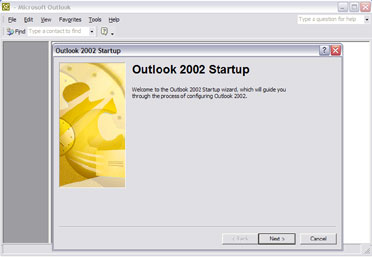
For the above screen, press next and then proceed to Step 2.
OR
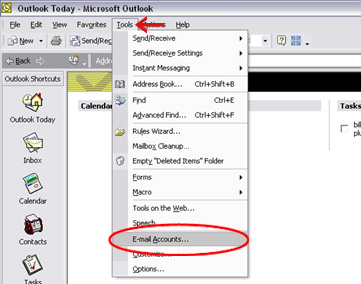
If you have previously used Outlook, the program may open to your Inbox or the Outlook Today screen. From the tool bar at the top, click on "Tools", then "Email Accounts..." Choose "Add a new e-mail account," (as shown in the graphic below) Press next and proceed to Step 2.
Step 2.
The next screen will ask you which kind of server you will be using. Choose the "POP3" option and press "Next."
Step 3.
Enter your settings:
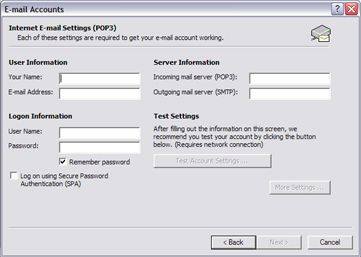
USER INFORMATION
Your Name: Enter your name as you would like it to appear when other people receive your email messages. You may use spaces, capital letters, and special characters.
Example: EagleZip.com!
E-mail Address: Enter your email address as you would like people to see it. Capital letters are allowed since our mail server is not case sensitive for email addresses. Spaces are not allowed. Your email address(es) can be found on your welcome letter.
Example: Info@EagleZip.com
SERVER INFORMATION
Incoming mail server (POP3): Type in your mail server EXACTLY as it appears on your welcome letter.*
Outgoing mail server (SMTP): Type in your mail server EXACTLY as it appears on your welcome letter.*
*Your incoming and outgoing mail servers may be identical
LOGiN INFORMATION
User Name: Your username is generally your email address, unless otherwise specified in your welcome letter. You must type in the username EXACTLY as it was provided to you. This section is case sensitive, so do not use capital letters unless indicated on your welcome letter.
Password: Enter your password EXACTLY as it appears on your welcome letter. The password is also case sensitive, so be sure to enter your password correctly, using the same case as indicated.
Remember Password: Check this box if you do not want to have to enter your password every time you retrieve or send e-mail.
Step 4.
Test Setting - Click on the "Test Account Settings..." button. A box will pop up indicating whether you were able to access your incoming and outgoing mail servers successfully. If no errors pop up, close the text box and then press next on the bottom of the screen. Click Finish and go to your Inbox to see if your test message has arrived.
If your testing was not successful, re-check all of your settings, re-enter your password and try again. If your testing is still unsuccessful, the most common error is listed below for your convenience.
Q: I am able to receive e-mail but I receive an error when I try to send e-mail.
A: Some Internet Service Providers will not allow mail to be sent through a different server than their own. Known companies are Earthlink, Velocity, and Surf Erie. If you have your internet through one of these companies and are having problems with your OUTGOING mail, you must call them and ask what their Outgoing Mail Server is. Type in this information exactly how it is provided into the Outgoing mail server box under Server Settings. If you are still experiencing difficulties, please contact EagleZip.com for assistance.